Change Boot Logo with Qualcomm Splash Tool Free Download
Change Boot Logo with Qualcomm Splash Tool

Introduction
Changing the boot logo of an Android device has become a popular customization trend among developers, mobile repair technicians, and advanced Android users. Changing the boot logo with the Qualcomm Splash Tool is a specialized method that allows users to modify the splash screen (boot logo) on Qualcomm-powered smartphones safely and efficiently.
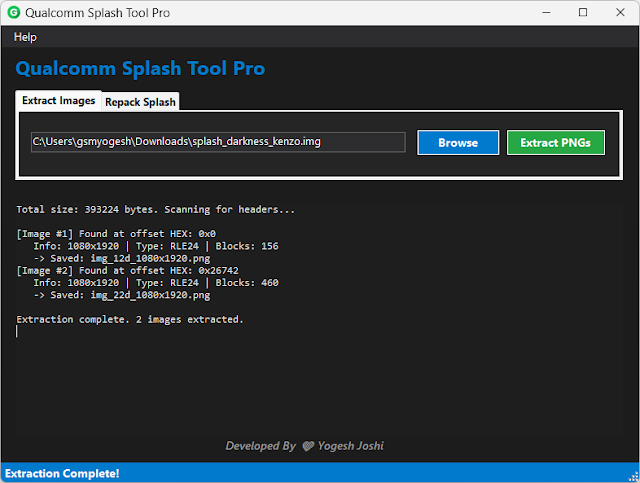
The splash screen is the first image displayed when a device powers on, before the operating system fully loads. On Qualcomm devices, this image is usually stored inside a dedicated partition such as splash or logo. With the Qualcomm Splash Tool, users can extract, edit, and replace this image without affecting the system firmware.
If you are searching for a reliable Qualcomm boot logo changer tool for Windows PC, this guide will explain everything you need to know, including features, installation process, and system requirements.
Overview
The Qualcomm Splash Tool is a Windows-based utility designed to manage splash partitions on Qualcomm Snapdragon devices. It allows technicians to:
-
Extract existing boot logo images
-
Convert custom images into compatible splash formats
-
Flash new boot logos safely
-
Backup original splash partitions
This tool works primarily in:
-
Fastboot Mode
-
EDL (Emergency Download Mode)
-
Qualcomm 9008 Mode
Changing the boot logo is commonly used for:
-
Custom ROM projects
-
Brand customization
-
Device rebranding
-
Repair of corrupted splash partitions
The Qualcomm Splash Tool ensures compatibility with various Snapdragon chipsets and simplifies the splash image conversion process.
Description
In Qualcomm-based Android devices, the splash screen is stored separately from the system partition. Unlike boot animations (which are part of the Android system), the splash logo is displayed before Android starts loading.
If the splash partition becomes corrupted, users may see:
-
Blank screen during startup
-
Distorted boot logo
-
Device stuck at initial logo
The Qualcomm Splash Tool helps solve these issues by enabling:
-
Splash image extraction
-
Image resizing and format conversion
-
Safe flashing of new splash images
The tool automatically converts PNG or BMP images into a format compatible with Qualcomm splash partitions. This reduces the risk of incorrect resolution or format errors that could otherwise damage the display output.
Version updates of similar tools often include improved chipset compatibility and support for newer Android devices running updated security patches.
For technicians and developers working on Qualcomm devices, this tool provides a safe and structured way to customize or repair boot logos.
Key Features:
Here are the major features of Change Boot Logo with Qualcomm Splash Tool:
1. Splash Partition Backup
Create a backup of the original splash image before modification.
2. Custom Boot Logo Flashing
Replace the default boot logo with a custom image.
3. Automatic Image Conversion
Convert PNG or BMP files into Qualcomm-compatible splash format.
4. Resolution Detection
Automatically detects device display resolution to ensure compatibility.
5. Fastboot & EDL Support
Works through Fastboot mode or Qualcomm 9008 EDL mode.
6. Multi-Device Compatibility
Supports a wide range of Snapdragon-powered smartphones.
7. Lightweight Interface
Simple and easy-to-use dashboard for beginners and professionals.
8. Safe Flashing Process
Minimizes risk of partition corruption.
9. Corrupted Splash Repair
Restore the splash partition if the boot logo is damaged.
10. Log Reporting
Provides detailed logs for troubleshooting flashing issues.
How To Install Change Boot Logo with Qualcomm Splash Tool
Follow these steps to properly install and use the tool:
Step 1: Download the Tool
Download the Qualcomm Splash Tool from a trusted GSM repair source.
Step 2: Extract the File
If the file is in ZIP or RAR format, extract it using WinRAR or 7-Zip.
Step 3: Install Qualcomm USB Drivers
Install Qualcomm USB drivers to ensure proper detection in EDL mode.
Step 4: Install ADB & Fastboot Drivers
Required if flashing via Fastboot mode.
Step 5: Disable Antivirus (If Needed)
Some repair tools may trigger false-positive alerts.
Step 6: Run as Administrator
Right-click the executable file and select “Run as Administrator.”
Step 7: Connect Device
Boot the device into Fastboot mode or EDL mode and connect via USB.
Step 8: Backup Original Splash
Always create a backup before flashing a new logo.
Step 9: Load Custom Image
Select your custom PNG or BMP image.
Step 10: Flash Splash Image
Click “Flash” and wait for the process to complete. Reboot the device to see changes.
Ensure the custom image matches the device’s screen resolution for best results.
Download Link: HERE
Your File Password: 123
File Version & Size: | 14.96 MB |
File type: compressed / Zip & RAR (Use 7zip or WINRAR to unzip File)
Support OS: All Windows (32-64 bit)
Virus Status: 100% Safe Scanned By Avast Antivirus